Page Options card allows setting of the Stop page template and activates some additional elements on the page.

Page Options Card settings
Show on Experience page
Enables/disables the Stop page display on the Experience/Stop list page.

Template
The field allows user to set the page template.
Standard template has Image and Text upright containers.

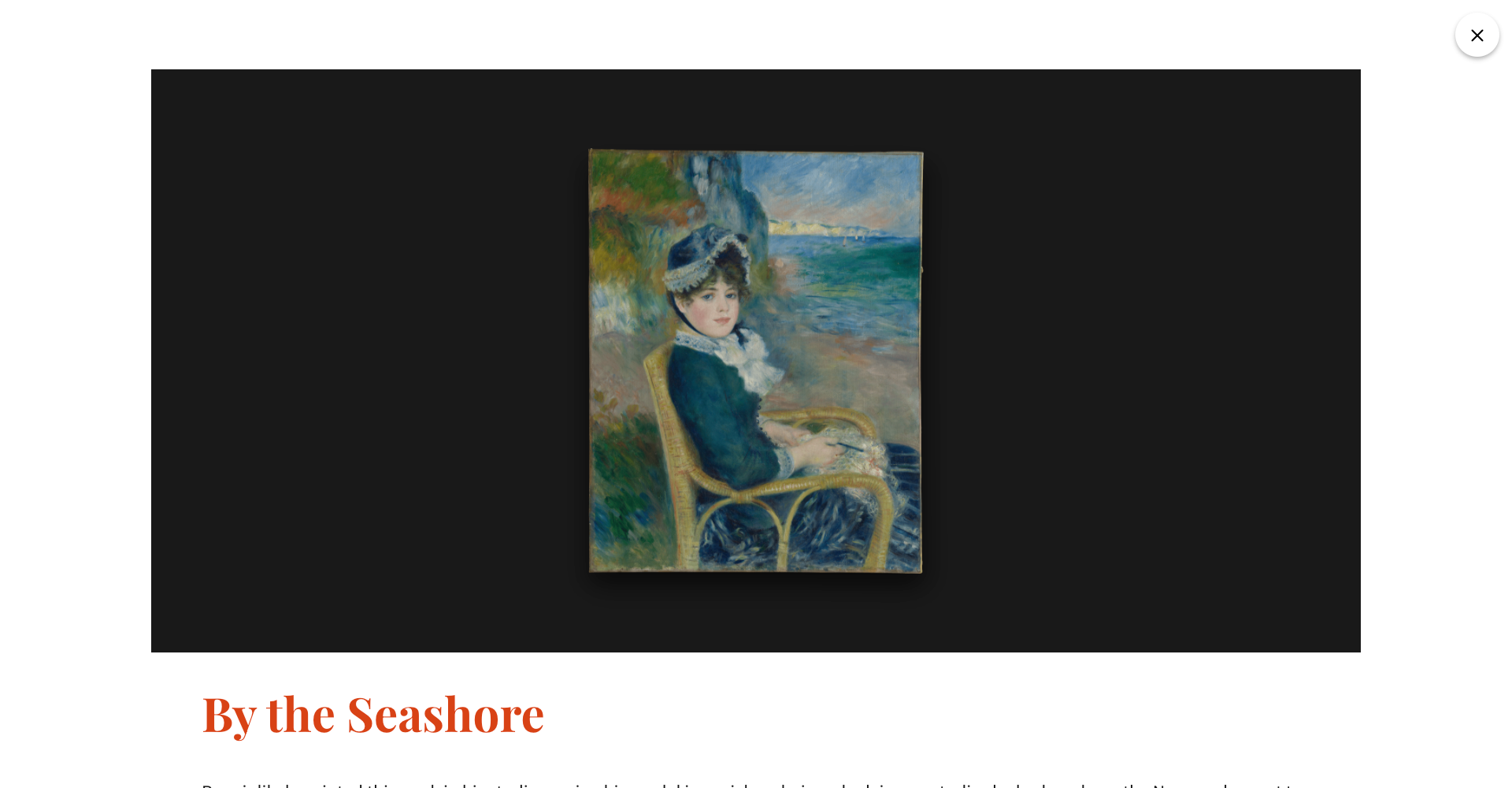
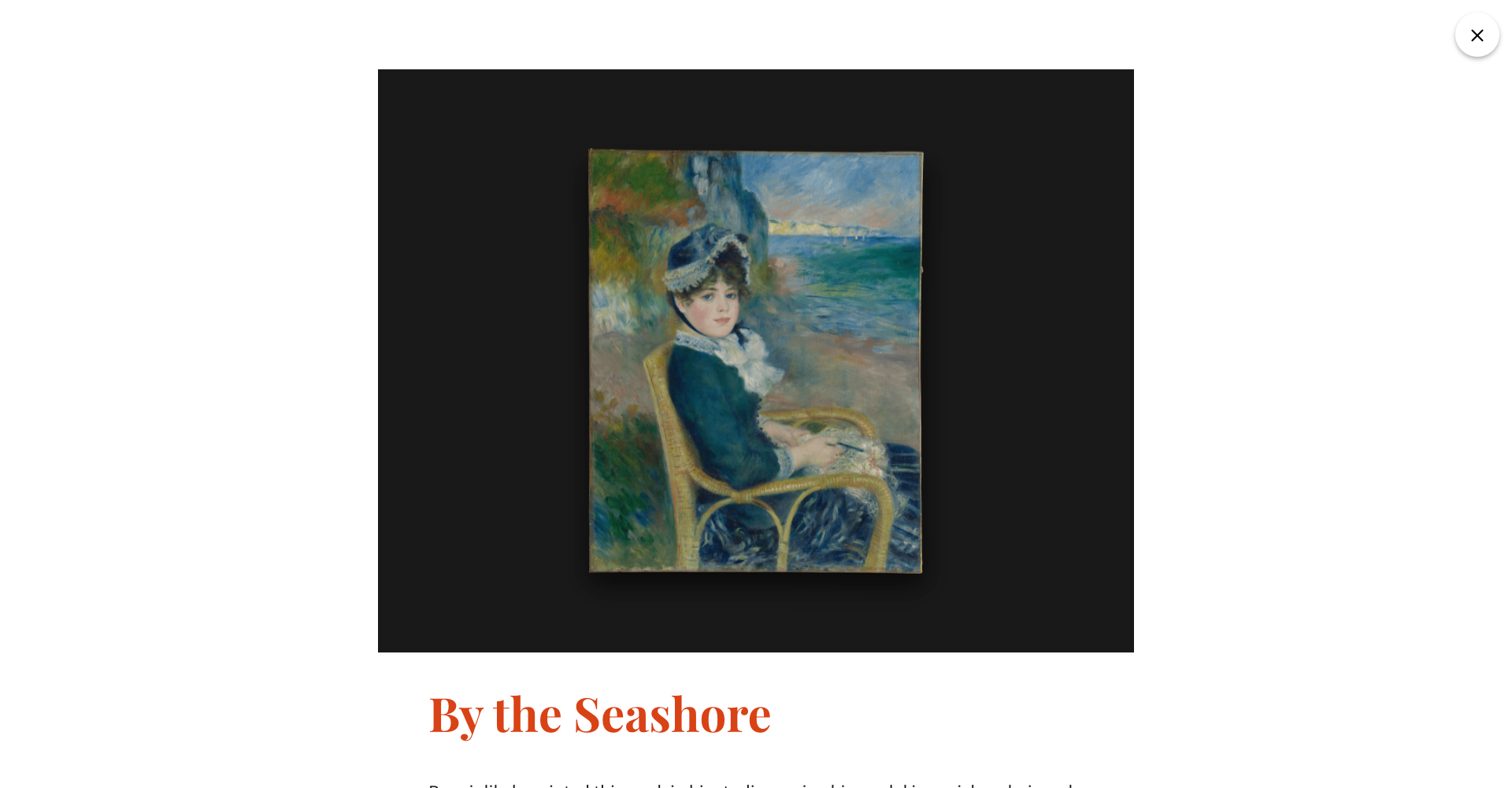
Full Width template allows content display on the full width of your device screen. In Full Width Template Stop Media and Content containers display vertically - Stop Media over the content container.
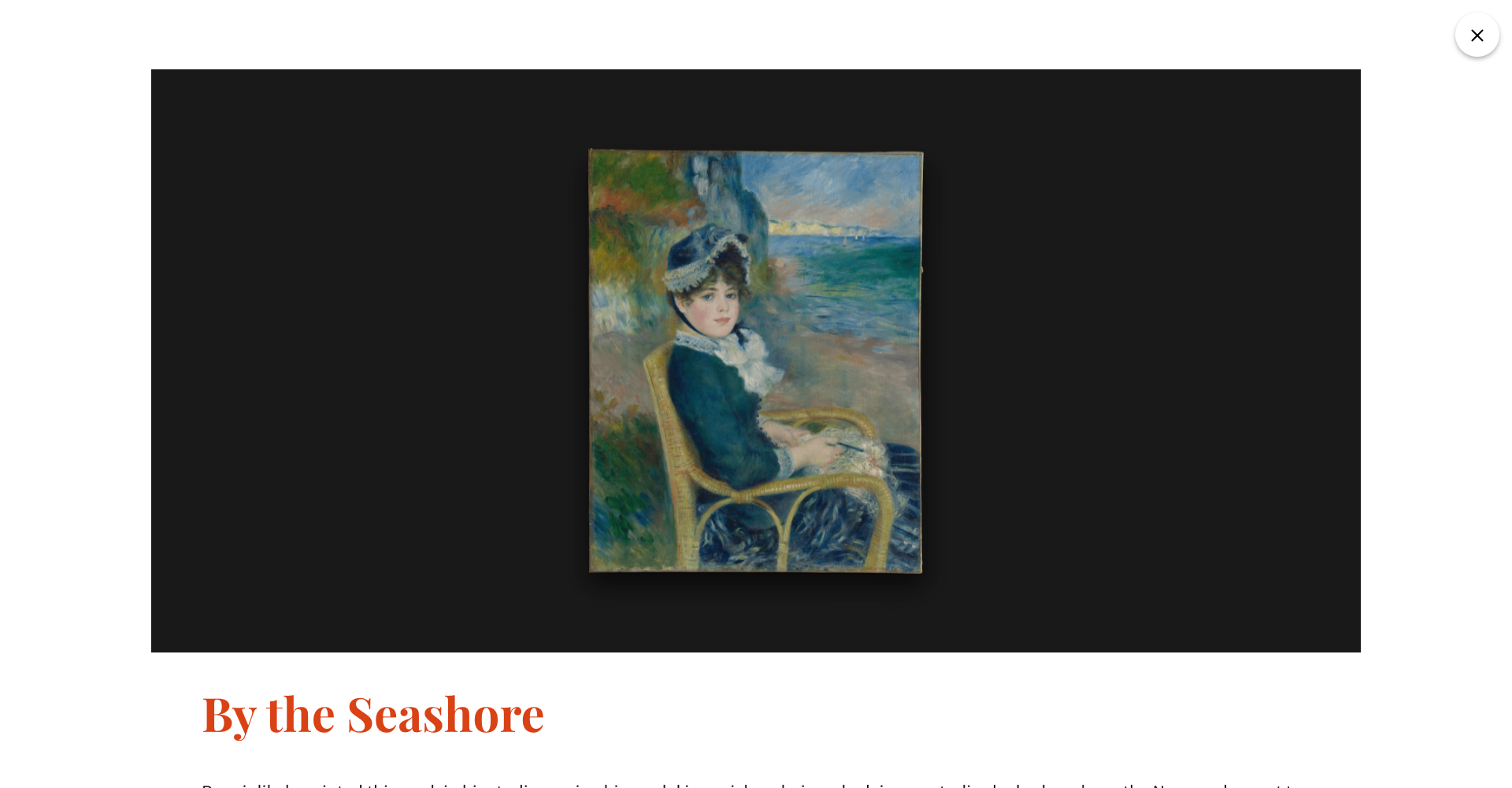
Image/Text Container Ratio
Settings applies only to the Standard template.
Here you can set Image container size in relation to the Content container.
Proportional containers
Image and Content containers are of the same size when this option is set.

Text container larger
Makes text container bigger than Image container.

Image container larger
Makes image container bigger than text container.

Content Width
Settings applies only to the Full Width template.
Here you can set width of the content container. Width can be set in % or px. Default width of the content container is 80% of the device screen.
Show 3D Object Viewer
Enables 3D Objects display in the Stop Media container. When the control is on you can add a 3D object to the Stop Media.
Tip#1: 3D Object Viewer Customization card appears in the bottom of the page when this control is on.
Show 'Learn more' section
Enables Learn more section display on the Stop page.
Tip#2: Learn More Customization cards (Learn More Customization - Basic and Learn More Customization - Button styling) on which you can customize Learn more panel and buttons appear in the bottom of the page if this control is on.

Enable Hotspots
When the control is on it's possible to add Hotspots on the image from the Stop Media.
Tip#3: Hotspot global settings where you can apply Hotspots settings appears if this control is on.
